> ## Documentation Index
> Fetch the complete documentation index at: https://visitdocs.planpoint.io/llms.txt
> Use this file to discover all available pages before exploring further.
# Property details
> Name, description, tags, location, price label and the sold flag — Settings → Details.
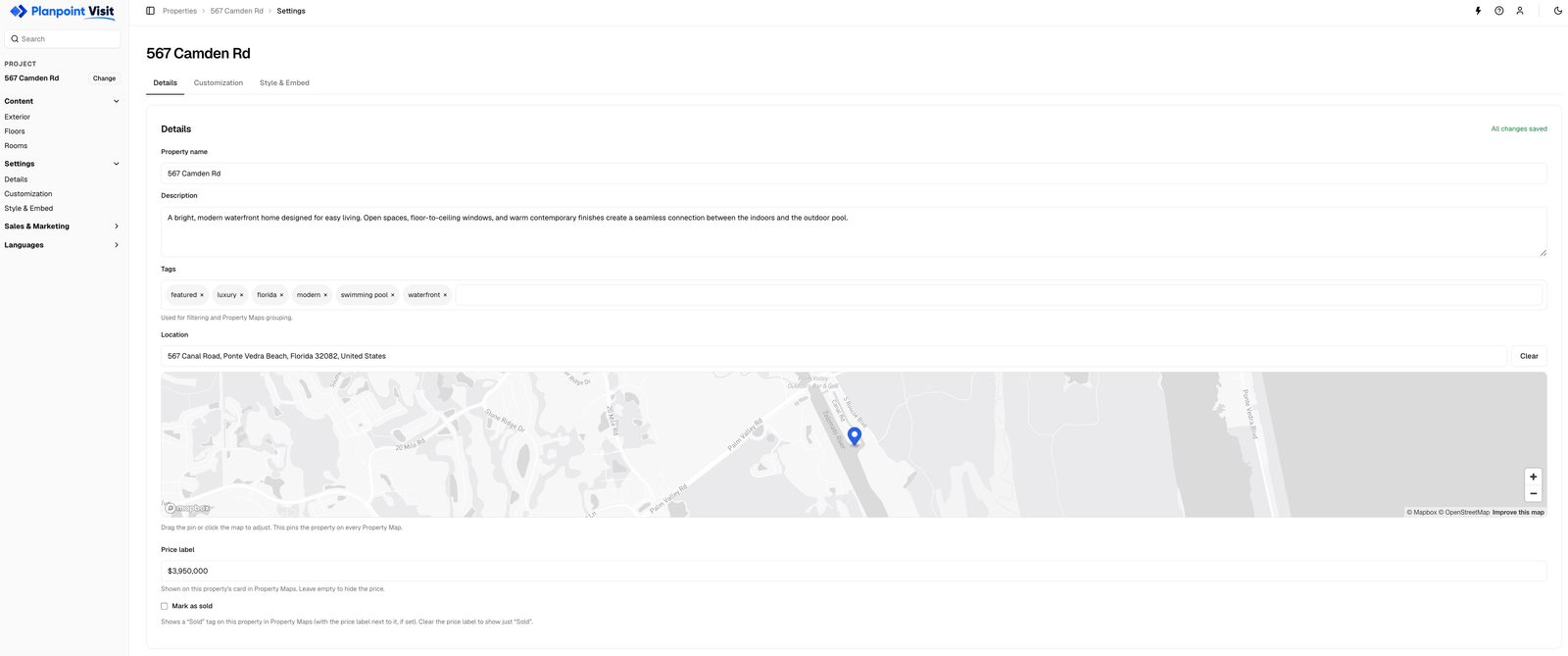
**Settings → Details** describes the property itself. It takes two minutes and feeds the viewer, the search on your properties list, and any [Property Map](/features/property-maps) the property belongs to.
 ## Property name
Shown as the page title of the public Visit, on the browser tab, and in link previews when the URL is shared. Use the name a buyer would recognise — the street address, or the project name.
## Description
A short pitch. It appears under the property name in link previews and is one of the strings you can [translate](/features/languages). Two or three sentences is plenty.
## Tags
Free-text labels — `lisbon`, `agent-silva`, `new-build`, `algarve`. Tags are never shown to buyers. They exist so you can:
* filter the properties list as your account grows,
* bulk-add a set of properties to a [Property Map](/features/property-maps) in one click.
Type a tag and press Enter to add it.
## Location
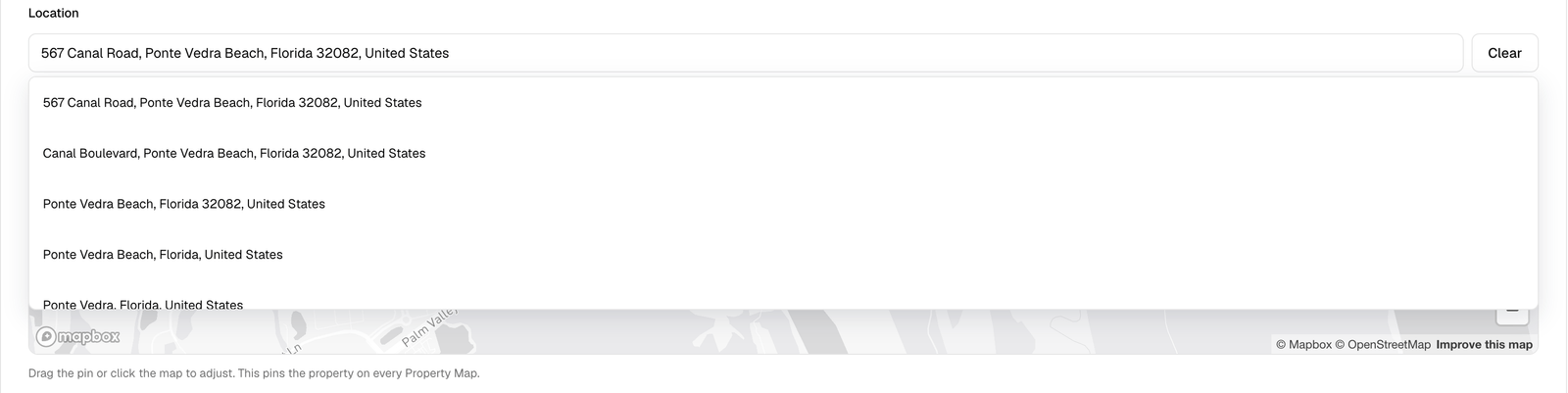
The location is the single source of truth for where this property sits on a map. Start typing an address and pick a suggestion, or click the mini map to drop the pin exactly where you want it. Drag the pin to fine-tune; the address label updates to match.
## Property name
Shown as the page title of the public Visit, on the browser tab, and in link previews when the URL is shared. Use the name a buyer would recognise — the street address, or the project name.
## Description
A short pitch. It appears under the property name in link previews and is one of the strings you can [translate](/features/languages). Two or three sentences is plenty.
## Tags
Free-text labels — `lisbon`, `agent-silva`, `new-build`, `algarve`. Tags are never shown to buyers. They exist so you can:
* filter the properties list as your account grows,
* bulk-add a set of properties to a [Property Map](/features/property-maps) in one click.
Type a tag and press Enter to add it.
## Location
The location is the single source of truth for where this property sits on a map. Start typing an address and pick a suggestion, or click the mini map to drop the pin exactly where you want it. Drag the pin to fine-tune; the address label updates to match.
 Property Maps read this pin. If you move the pin here, every map that includes this property moves with it — and the address on the map card follows the pin, not any other field.
## Price label
Free text, so you can write `€480,000`, `From $1.2M` or `Price on request`. It is shown on the property's card in Property Maps. Leave it empty to hide the price entirely.
## Mark as sold
Ticking **Mark as sold** shows a *Sold* tag on this property in Property Maps, next to the price label. Clear the price label if you want the card to show only *Sold*.
## Danger zone
The bottom of the Details page holds **Delete property**. Deleting is permanent — the public link stops working immediately. You have to type the property name exactly to enable the button.
Deleted Visits cannot be restored, and any link or embed pointing at them will break. If you only want to take a Visit offline temporarily, remove the embed from your site and keep the property.
Property Maps read this pin. If you move the pin here, every map that includes this property moves with it — and the address on the map card follows the pin, not any other field.
## Price label
Free text, so you can write `€480,000`, `From $1.2M` or `Price on request`. It is shown on the property's card in Property Maps. Leave it empty to hide the price entirely.
## Mark as sold
Ticking **Mark as sold** shows a *Sold* tag on this property in Property Maps, next to the price label. Clear the price label if you want the card to show only *Sold*.
## Danger zone
The bottom of the Details page holds **Delete property**. Deleting is permanent — the public link stops working immediately. You have to type the property name exactly to enable the button.
Deleted Visits cannot be restored, and any link or embed pointing at them will break. If you only want to take a Visit offline temporarily, remove the embed from your site and keep the property.