> ## Documentation Index
> Fetch the complete documentation index at: https://visitdocs.planpoint.io/llms.txt
> Use this file to discover all available pages before exploring further.
# Dashboard tour
> Where everything lives: properties, the sidebar, the three property tabs and how saving works.
 ## The sidebar
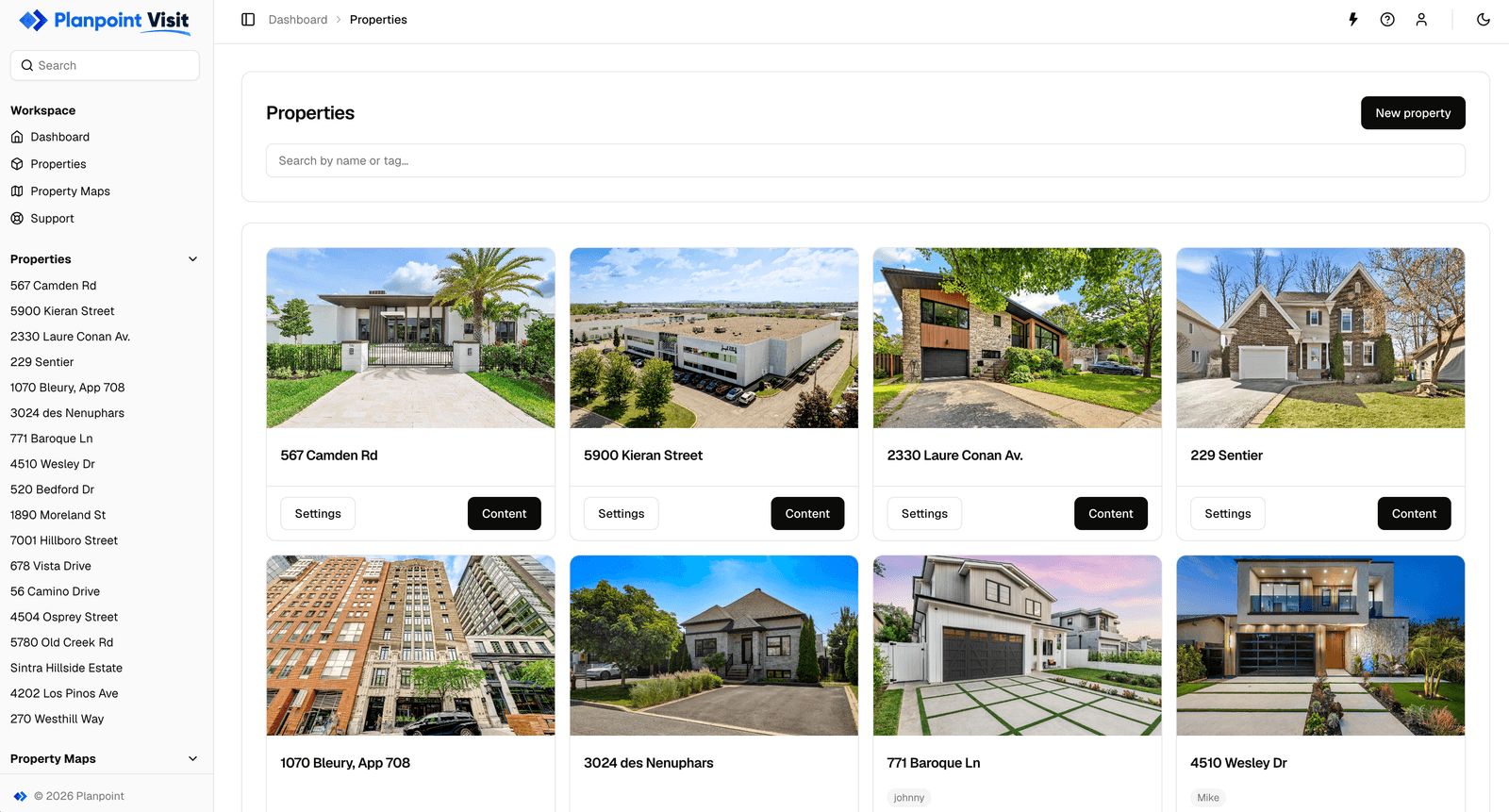
The left sidebar always shows where you are:
| Section | What it contains |
| ----------------- | ----------------------------------------------------------------------------------------- |
| **Workspace** | Dashboard home and the full list of properties. |
| **Properties** | Once a property is open: its Content, Settings, Sales & Marketing and Languages sections. |
| **Property Maps** | Portfolio maps that group several properties on one interactive map. |
When no property is open the sidebar shows workspace navigation. As soon as you open one, it switches to that property's sections so you can jump between Exterior, Floors, Rooms, Details and so on without going back.
## The properties list
**Properties** separates your Visits into **Active** and **Archived**. Active Visits can be edited and opened publicly; Archived Visits stay saved but offline until you restore them. See [Archive and restore Visits](/archive-visits) for the complete workflow.
Because agencies end up with hundreds of Visits, both lists are built around search: the field at the top filters by **property name or tag** as you type.
## The sidebar
The left sidebar always shows where you are:
| Section | What it contains |
| ----------------- | ----------------------------------------------------------------------------------------- |
| **Workspace** | Dashboard home and the full list of properties. |
| **Properties** | Once a property is open: its Content, Settings, Sales & Marketing and Languages sections. |
| **Property Maps** | Portfolio maps that group several properties on one interactive map. |
When no property is open the sidebar shows workspace navigation. As soon as you open one, it switches to that property's sections so you can jump between Exterior, Floors, Rooms, Details and so on without going back.
## The properties list
**Properties** separates your Visits into **Active** and **Archived**. Active Visits can be edited and opened publicly; Archived Visits stay saved but offline until you restore them. See [Archive and restore Visits](/archive-visits) for the complete workflow.
Because agencies end up with hundreds of Visits, both lists are built around search: the field at the top filters by **property name or tag** as you type.
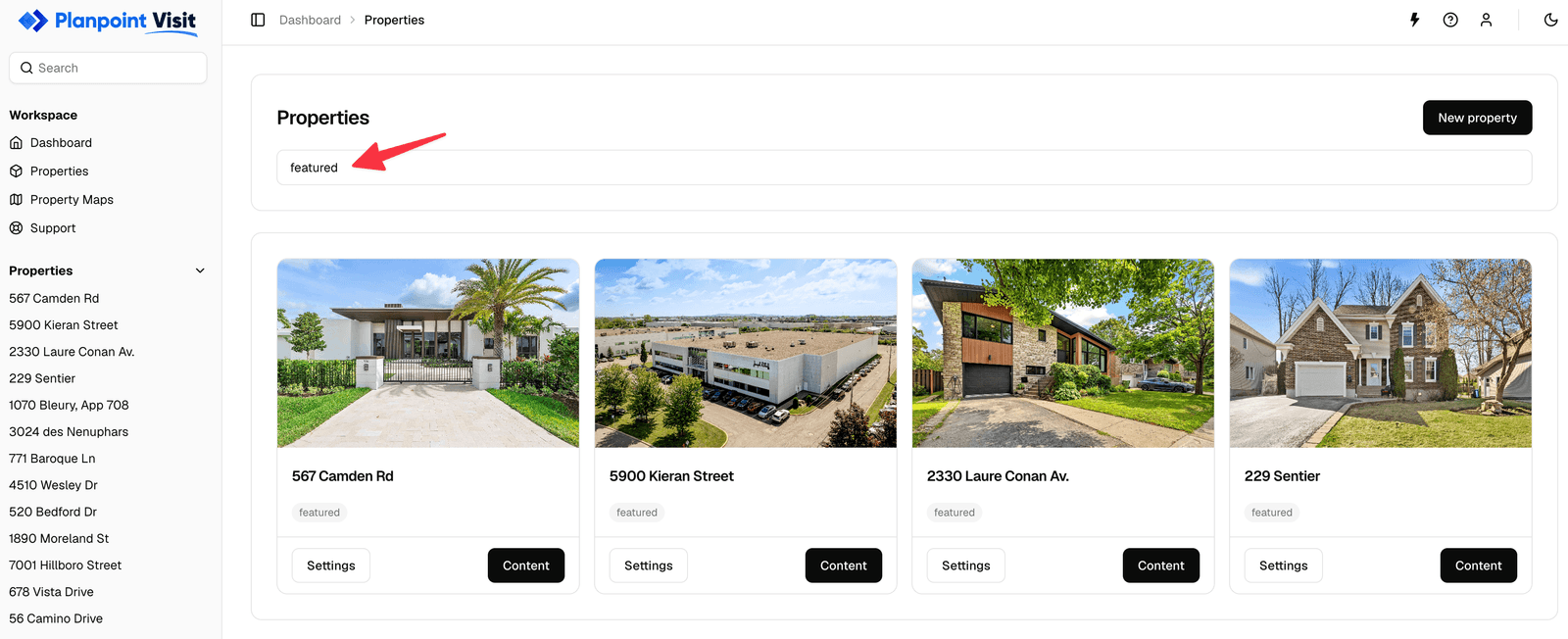 Each active card shows the property's cover image (the first exterior photo), its name, description and tags. Clicking the card opens **Content → Exterior**; the two buttons underneath jump straight to **Settings** or **Content**. Archived cards are read-only and offer a **Restore Visit** button instead.
## The three property tabs
Every property is edited through three tabs:
Exterior, Floors, Rooms — the tour itself.
Details, Customization, Style & Embed.
Analytics and the contact Form.
A fourth section, **Languages → Translations**, appears in the sidebar when you want to offer the Visit in more than one language.
## Saving
There is no Save button in most of the editor. Planpoint Visit **saves automatically** a moment after you stop editing, and each card shows its own status:
* **Saving…** — the change is on its way to the server.
* **All changes saved** — you're safe to close the tab.
* **Unsaved changes** — something is still buffered locally (usually a text field you're still typing in).
Text fields save when you **click away** from them, not on every keystroke. If you type into a field and immediately close the tab, the change may not be saved — press Tab or click elsewhere first and wait for **All changes saved**.
Two things are the exception and have their own explicit save action: **Custom CSS** (Save CSS button) and anything inside the fullscreen **polygon editor** (the disk icon in its toolbar).
## Light and dark mode
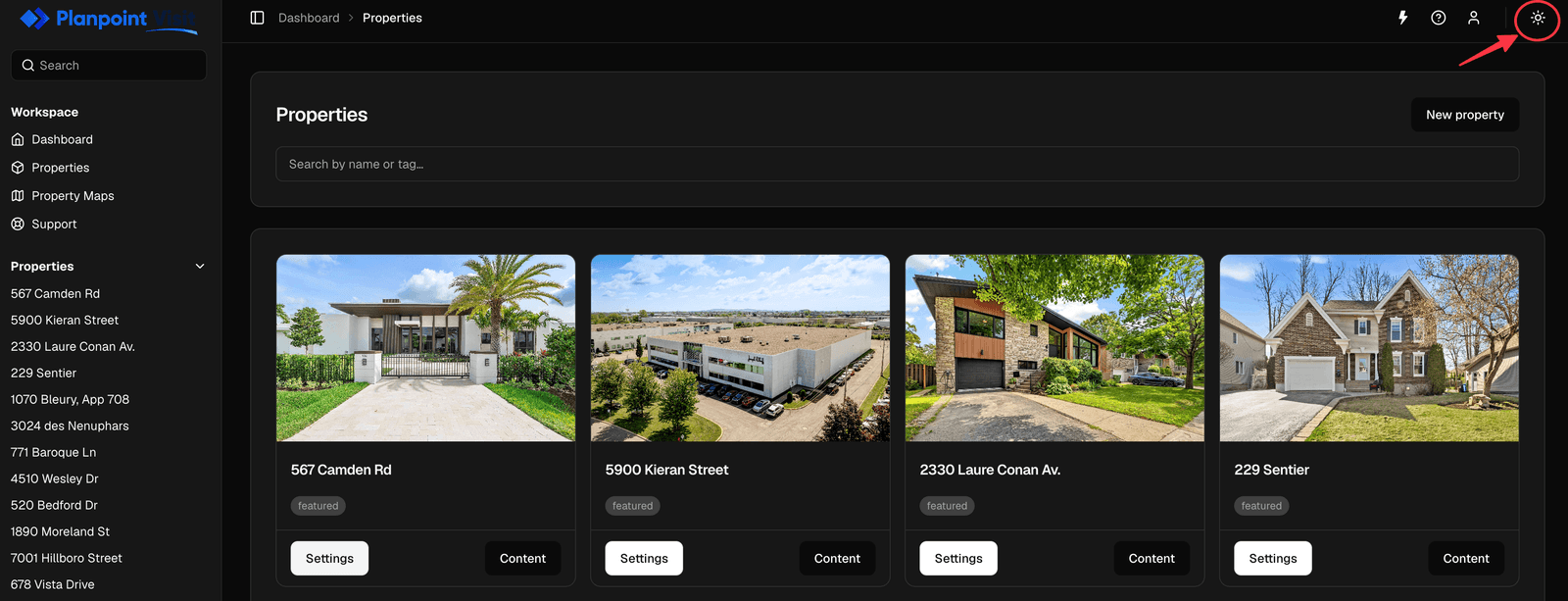
The dashboard follows your preference — use the toggle in the top bar to switch between light and dark. This is purely a dashboard setting; it does not change what buyers see. To offer buyers a dark mode, see [Dark mode](/customize/dark-mode).
Each active card shows the property's cover image (the first exterior photo), its name, description and tags. Clicking the card opens **Content → Exterior**; the two buttons underneath jump straight to **Settings** or **Content**. Archived cards are read-only and offer a **Restore Visit** button instead.
## The three property tabs
Every property is edited through three tabs:
Exterior, Floors, Rooms — the tour itself.
Details, Customization, Style & Embed.
Analytics and the contact Form.
A fourth section, **Languages → Translations**, appears in the sidebar when you want to offer the Visit in more than one language.
## Saving
There is no Save button in most of the editor. Planpoint Visit **saves automatically** a moment after you stop editing, and each card shows its own status:
* **Saving…** — the change is on its way to the server.
* **All changes saved** — you're safe to close the tab.
* **Unsaved changes** — something is still buffered locally (usually a text field you're still typing in).
Text fields save when you **click away** from them, not on every keystroke. If you type into a field and immediately close the tab, the change may not be saved — press Tab or click elsewhere first and wait for **All changes saved**.
Two things are the exception and have their own explicit save action: **Custom CSS** (Save CSS button) and anything inside the fullscreen **polygon editor** (the disk icon in its toolbar).
## Light and dark mode
The dashboard follows your preference — use the toggle in the top bar to switch between light and dark. This is purely a dashboard setting; it does not change what buyers see. To offer buyers a dark mode, see [Dark mode](/customize/dark-mode).
 ## Your account
The account menu in the top-right holds **Account settings** (name, email, password) and **Sign out**. See [Account settings](/account/account-settings).
## Your account
The account menu in the top-right holds **Account settings** (name, email, password) and **Sign out**. See [Account settings](/account/account-settings).