> ## Documentation Index
> Fetch the complete documentation index at: https://visitdocs.planpoint.io/llms.txt
> Use this file to discover all available pages before exploring further.
# Panorama mode
> A full-width, immersive way to look at a room photo.
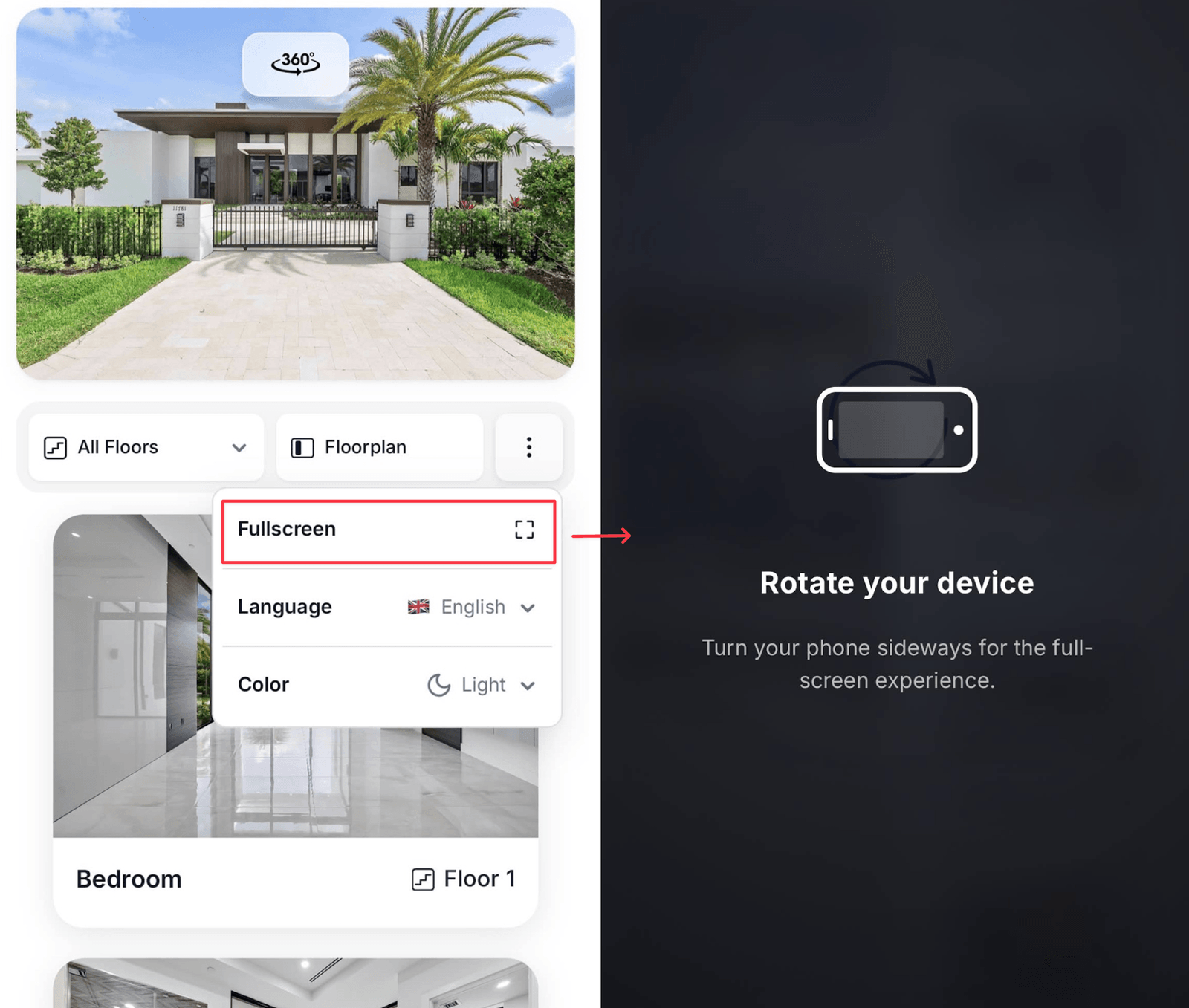
Panorama mode gives a photo the whole screen. It is opened from the **⋮** menu in the viewer's filter row.
 ## Using it
* Open the **⋮** menu and choose **Panorama**
* Drag or swipe across the photo to pan
* On a phone, a hint suggests rotating to landscape for the full effect
* Close it from the same menu, or with Esc
## When it helps
Panorama mode suits wide shots — an open-plan living space, a terrace, a view from a balcony. Anything where the interesting content runs across the frame rather than sitting in the middle.
For genuine 360° content, use the **3D / 360° tour URL** field on a [room](/build/rooms) or an [additional 360° exterior](/build/exterior) instead. Panorama mode is a presentation of a normal photo, not a spherical viewer.
## Notes
Inside an [embed](/share/embed), panorama mode shares scroll gestures with the host page and can feel different from the standalone URL. Link to the public URL if the immersive view is central to your pitch.
* The [Glass](/customize/style-editor) layout theme suits panorama especially well, since the browse panel floats over the image rather than sitting beside it.
* Photo quality shows here more than anywhere else. Use the largest, sharpest version you have — within the 10 MB limit.
## Using it
* Open the **⋮** menu and choose **Panorama**
* Drag or swipe across the photo to pan
* On a phone, a hint suggests rotating to landscape for the full effect
* Close it from the same menu, or with Esc
## When it helps
Panorama mode suits wide shots — an open-plan living space, a terrace, a view from a balcony. Anything where the interesting content runs across the frame rather than sitting in the middle.
For genuine 360° content, use the **3D / 360° tour URL** field on a [room](/build/rooms) or an [additional 360° exterior](/build/exterior) instead. Panorama mode is a presentation of a normal photo, not a spherical viewer.
## Notes
Inside an [embed](/share/embed), panorama mode shares scroll gestures with the host page and can feel different from the standalone URL. Link to the public URL if the immersive view is central to your pitch.
* The [Glass](/customize/style-editor) layout theme suits panorama especially well, since the browse panel floats over the image rather than sitting beside it.
* Photo quality shows here more than anywhere else. Use the largest, sharpest version you have — within the 10 MB limit.