> ## Documentation Index
> Fetch the complete documentation index at: https://visitdocs.planpoint.io/llms.txt
> Use this file to discover all available pages before exploring further.
# Embed on your website
> Drop the Visit into your own listing page with one iframe.
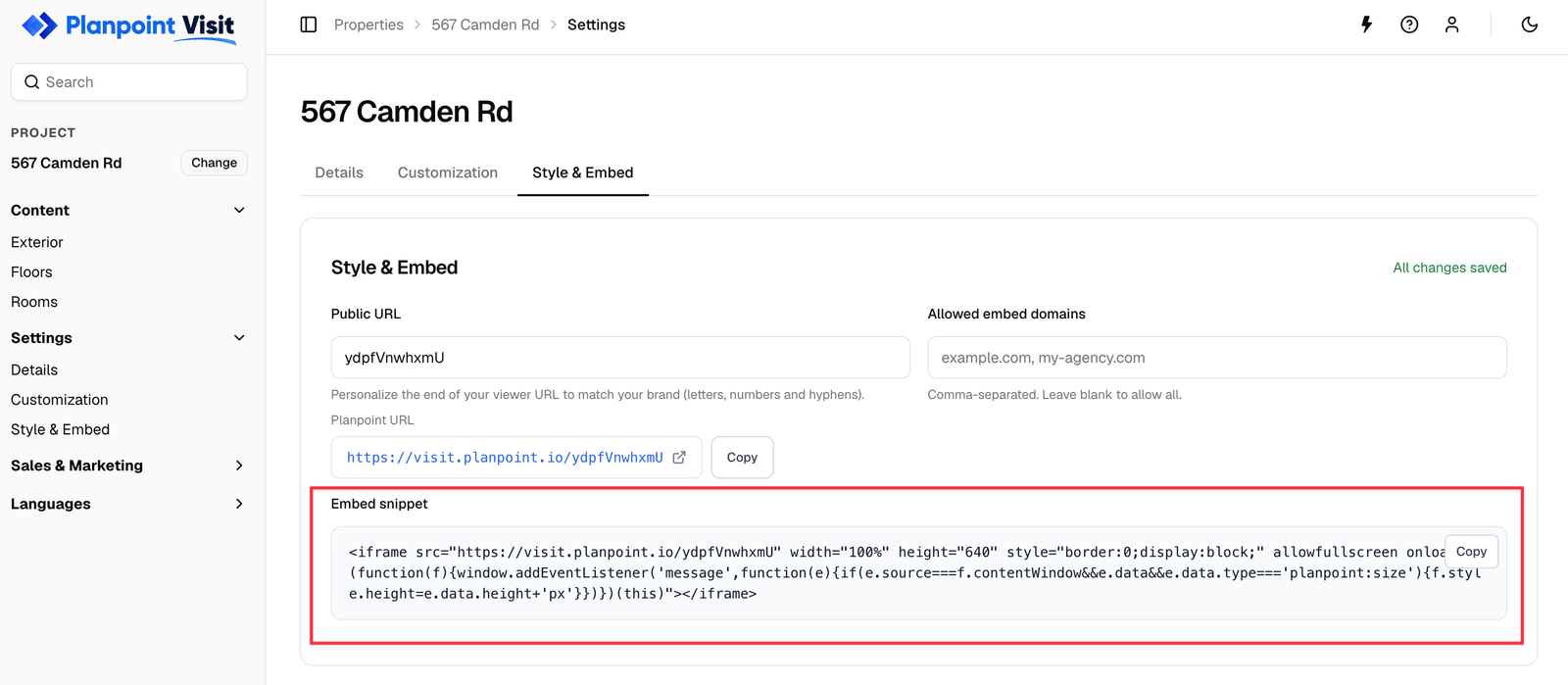
**Settings → Style & Embed** gives you a ready-made snippet. Click **Copy** and paste it into your page.
 ## The snippet
```html theme={null}
```
The snippet you copy also contains a small `onload` handler that listens for a `planpoint:size` message from the viewer and resizes the iframe to fit its content — so the Visit never ends up with an inner scrollbar.
Keep `allowfullscreen`. Without it, the fullscreen photo view and the buyer's floor plan editor cannot expand.
## Allowed embed domains
In the same card, **Allowed embed domains** takes a comma-separated list:
```
example.com, my-agency.com
```
Only those domains may frame your Visit. Leave it blank to allow all — which is the default.
Add your staging domain too, otherwise the embed will look broken while you are testing.
## Sizing
* **Width** — leave at `100%` so it follows your layout.
* **Height** — `640` is a sensible starting point. With the auto-resize handler in place the iframe grows to fit; if your CMS strips inline event handlers, set a fixed height of at least `600px` instead.
For a full-bleed section, wrap the iframe in a container and set the height in CSS:
```css theme={null}
.visit-embed iframe {
height: 80vh;
min-height: 600px;
}
```
## Platform notes
Use a **Custom HTML** block, not the visual editor — the classic editor may strip the `onload` attribute. Some security plugins block iframes; allow `visit.planpoint.io` if the embed appears empty.
Add an **Embed** element and paste the snippet. Set the parent div's height in the Designer if you want a fixed size.
Use the **Embed / HTML** block. Both platforms sandbox custom code, so if the auto-resize does not fire, set a fixed height on the iframe.
Paste the iframe as JSX, renaming `allowfullscreen` to `allowFullScreen` and `style` to an object. Subscribe to the `planpoint:size` message in a `useEffect` if you want auto-resize.
## Behaviour inside an iframe
Most things work identically, with two exceptions worth knowing:
* **Panorama mode** relies on the parent page for scroll gestures, so it can feel different from the standalone URL.
* Browsers block **install to home screen** prompts inside frames.
If either matters to you, link out to the [public URL](/share/public-url) instead of embedding.
## The snippet
```html theme={null}
```
The snippet you copy also contains a small `onload` handler that listens for a `planpoint:size` message from the viewer and resizes the iframe to fit its content — so the Visit never ends up with an inner scrollbar.
Keep `allowfullscreen`. Without it, the fullscreen photo view and the buyer's floor plan editor cannot expand.
## Allowed embed domains
In the same card, **Allowed embed domains** takes a comma-separated list:
```
example.com, my-agency.com
```
Only those domains may frame your Visit. Leave it blank to allow all — which is the default.
Add your staging domain too, otherwise the embed will look broken while you are testing.
## Sizing
* **Width** — leave at `100%` so it follows your layout.
* **Height** — `640` is a sensible starting point. With the auto-resize handler in place the iframe grows to fit; if your CMS strips inline event handlers, set a fixed height of at least `600px` instead.
For a full-bleed section, wrap the iframe in a container and set the height in CSS:
```css theme={null}
.visit-embed iframe {
height: 80vh;
min-height: 600px;
}
```
## Platform notes
Use a **Custom HTML** block, not the visual editor — the classic editor may strip the `onload` attribute. Some security plugins block iframes; allow `visit.planpoint.io` if the embed appears empty.
Add an **Embed** element and paste the snippet. Set the parent div's height in the Designer if you want a fixed size.
Use the **Embed / HTML** block. Both platforms sandbox custom code, so if the auto-resize does not fire, set a fixed height on the iframe.
Paste the iframe as JSX, renaming `allowfullscreen` to `allowFullScreen` and `style` to an object. Subscribe to the `planpoint:size` message in a `useEffect` if you want auto-resize.
## Behaviour inside an iframe
Most things work identically, with two exceptions worth knowing:
* **Panorama mode** relies on the parent page for scroll gestures, so it can feel different from the standalone URL.
* Browsers block **install to home screen** prompts inside frames.
If either matters to you, link out to the [public URL](/share/public-url) instead of embedding.