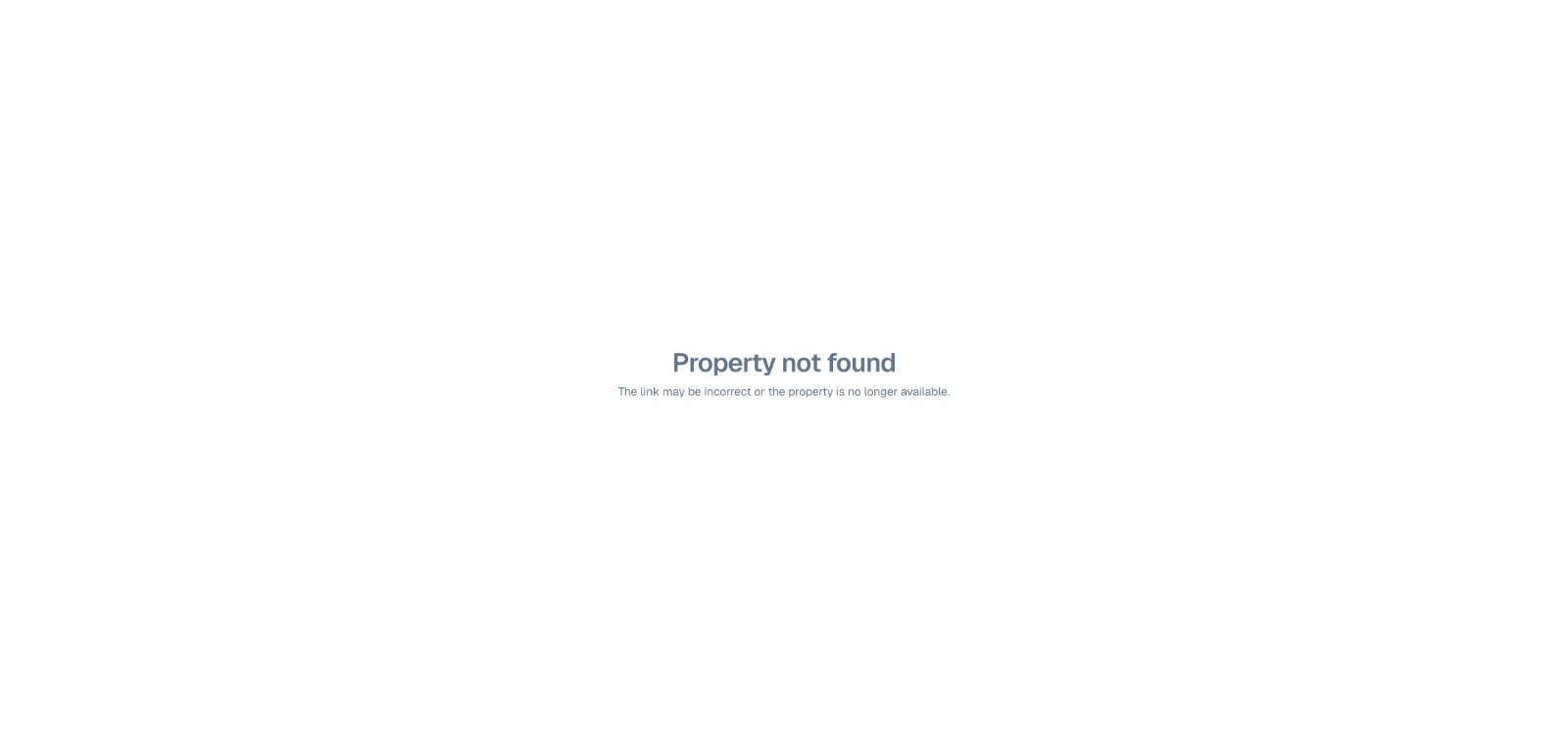
Archiving is the reversible way to take a Visit out of use. The Visit disappears from your active property list, its public link stops working and nobody can edit it until it is restored. Its photos, floor plans, rooms, settings and other saved data stay in your account.

What archiving changes

Archiving takes the public Visit offline immediately. Check where its link or embed is being used before you archive it.

Archive a Visit

1

Open the Visit settings

From Properties → Active, open the Visit and select Settings → Details.
2

Find Archive

Scroll to the orange Archive card. Its description confirms that archiving keeps the content saved while taking the Visit offline and removes it from your subscription Visit count.
3

Archive

Click Archive Visit. Planpoint moves you to the Archived list as soon as the change is complete.
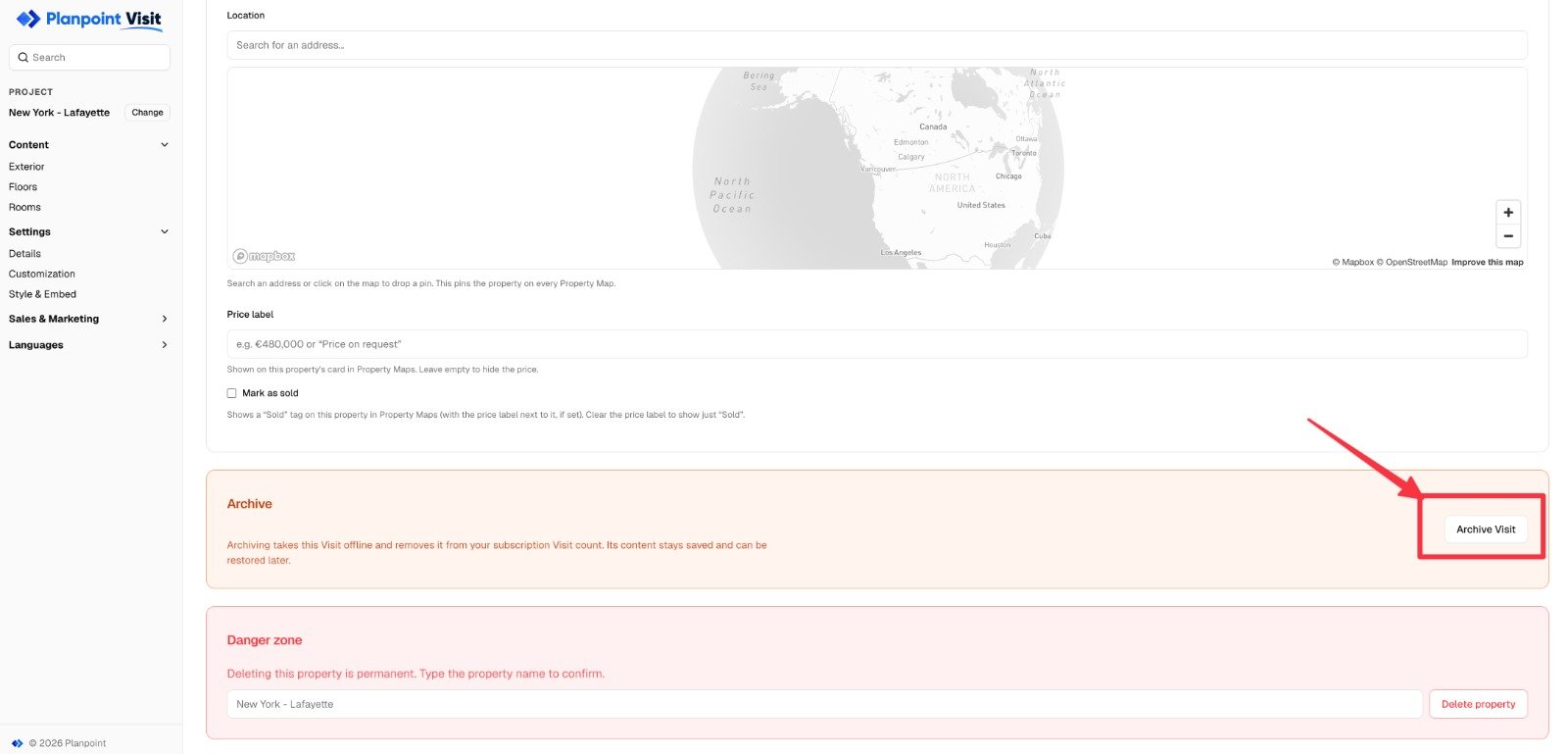
Screenshot needed · Archive action

Capture: Settings → Details with the orange Archive card and Archive Visit button visible.Replace this card with: /images/dashboard/archive-visit-settings.png

Find archived Visits

Open Properties and select Archived above the search field. Archived cards keep the Visit name, cover, description, tags and archive date visible, but do not contain links to the editor or public page. Search still works by name or tag.
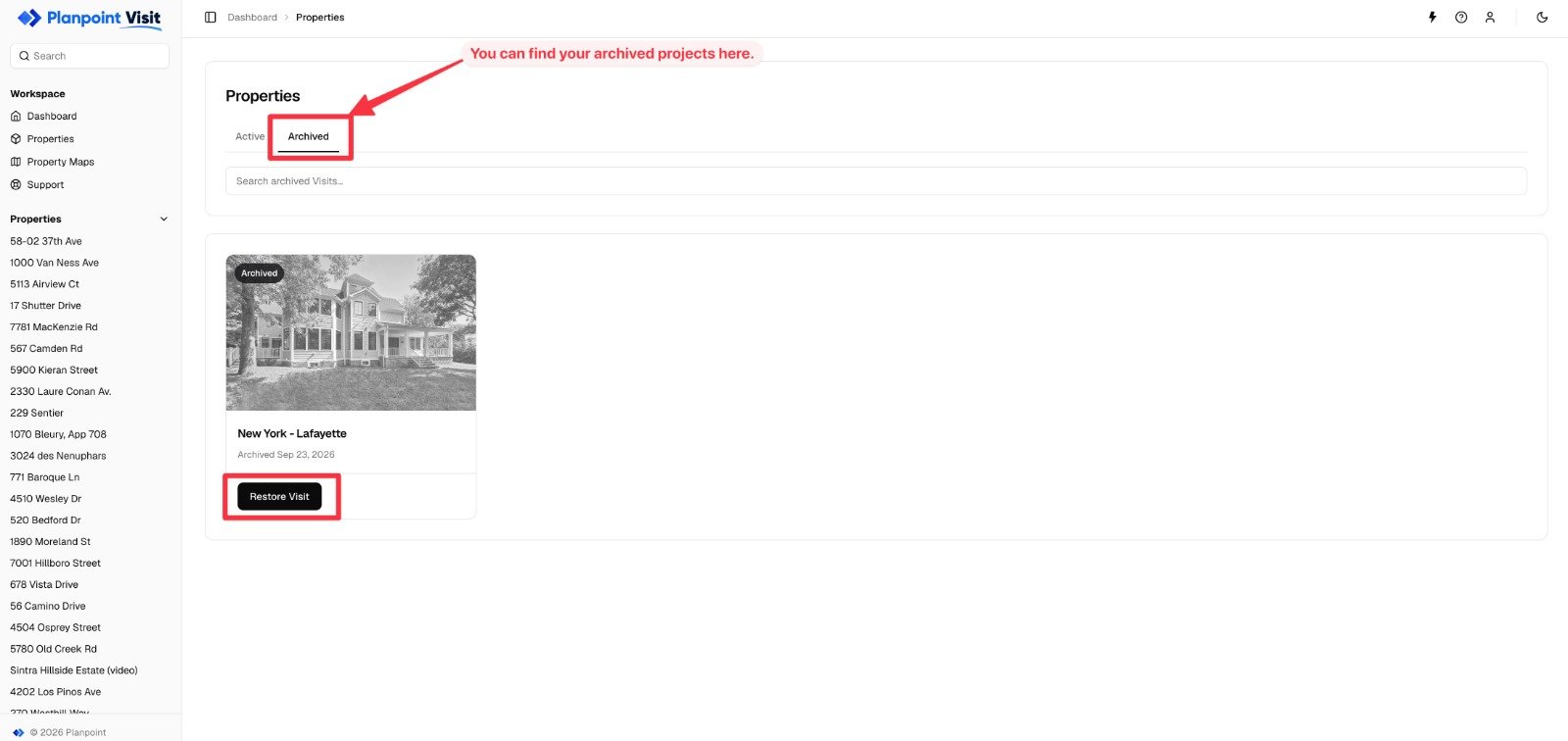
Screenshot needed · Archived list

Capture: Properties → Archived with the Archived tab, an archived Visit card and the Restore Visit button visible.Replace this card with: /images/dashboard/archived-visits.png
If you open an old editor bookmark while the Visit is archived, Planpoint shows that the Visit must be restored before editing. Anyone opening its public URL sees that the property is no longer available.

Screenshot needed · Public Visit offline

Capture: The public URL for an archived Visit showing the Property not found message.Replace this card with: /images/dashboard/archived-public-url.png

Restore a Visit

1

Open Archived

Go to Properties → Archived and find the Visit by name or tag.
2

Restore

Click Restore Visit on its card. The card leaves the Archived list and returns to Active.
3

Check the Visit

Open the Visit from Active. Editing, its public URL and its place on any Property Maps are available again with the same saved content and settings.
A restored Visit keeps the same public URL. You do not need to replace links or embed code that you shared before archiving it.

Archive or delete?

Use Archive Visit when the property is temporarily off the market, a listing is between campaigns or you may need the Visit again. Use Delete property only when you are certain the Visit and all of its saved content are no longer needed. Deletion is permanent; archiving is reversible.