

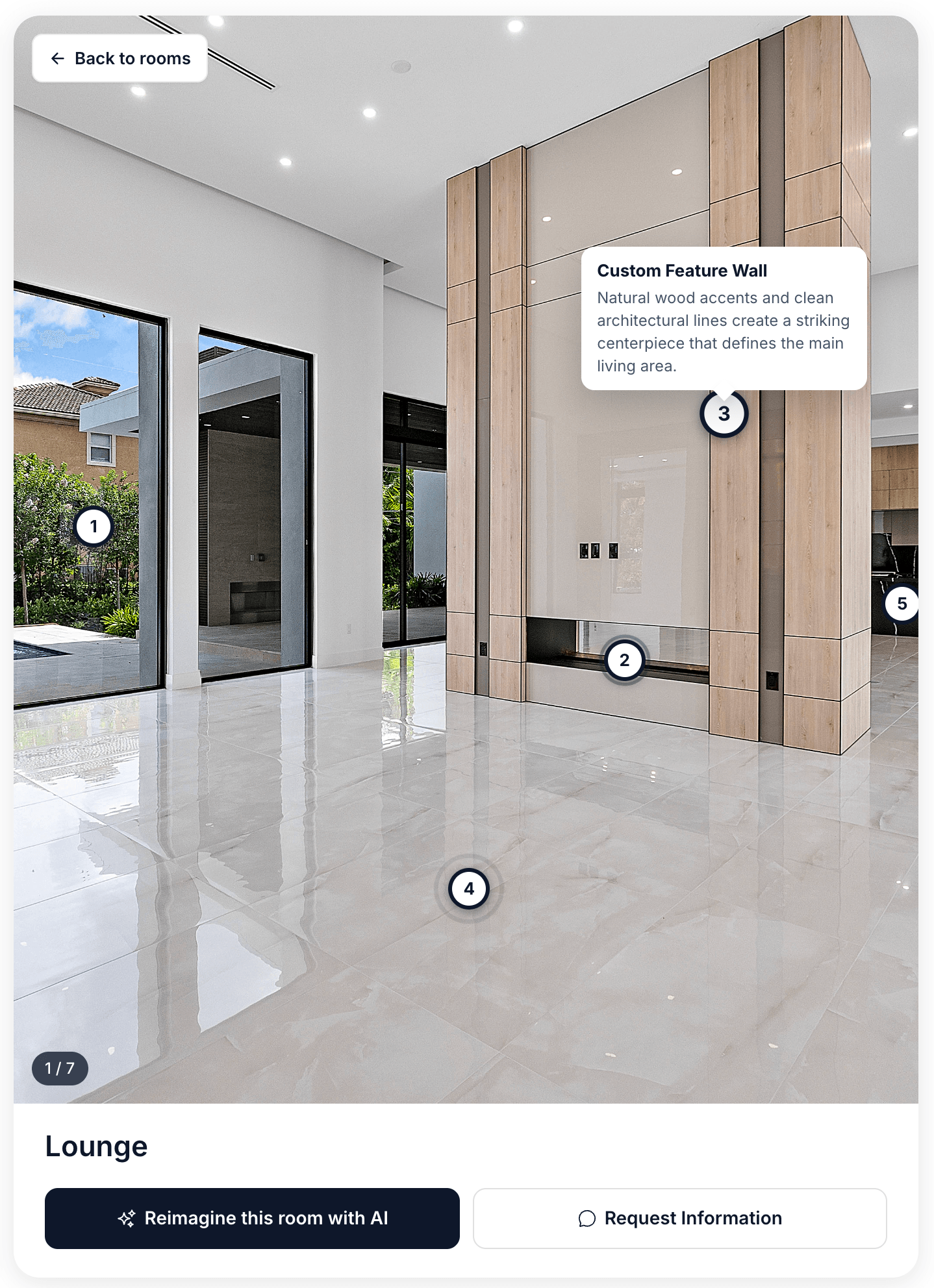
Feature hotspots in the viewer — a pin opens a small card
Adding hotspots
The hotspot editor sits directly under the Room photo field in Content → Rooms, and appears as soon as a photo is uploaded.1
Go fullscreen
Click Fullscreen for precise placement — worth it on a detailed photo.
2
Click to add a pin
Click anywhere on the photo. A numbered pin is added and selected.
3
Write the label
Fill in the title and, optionally, a description in the list next to the photo.
4
Adjust
Drag a pin to move it. Use Delete in the list to remove one.
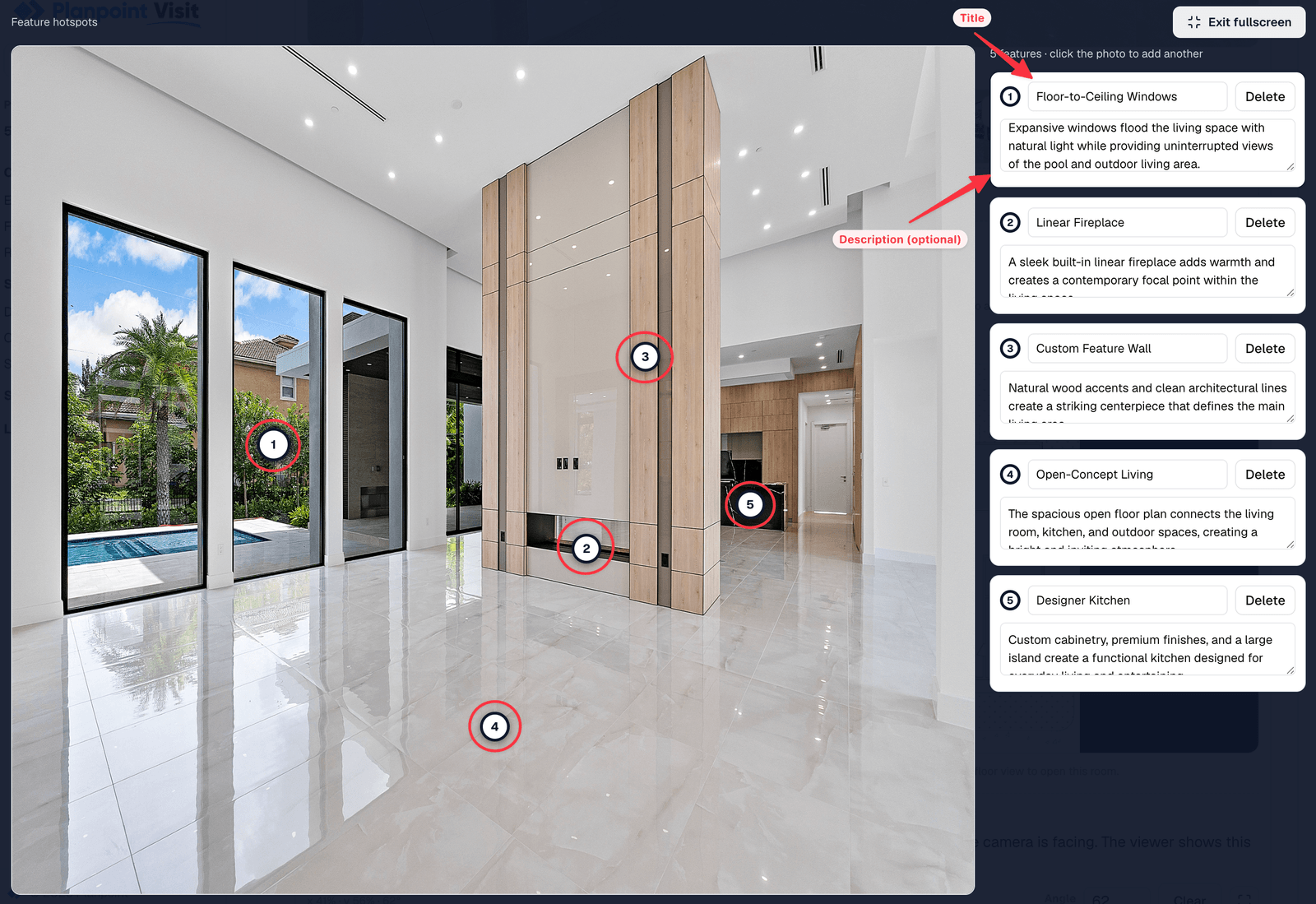
The hotspot editor — pins on the left, labels on the right
Placing pins in fullscreen and labelling them as you go
What makes a good hotspot
Hotspots earn their place when they answer a question a photo cannot:- Brands and appliances — Fulgar Milano oven, Miele induction hob
- Materials — Quartzite countertop, European oak flooring
- Recent work — Brand-new windows (2024), Updated electrical panel
- Things that are easy to miss — Heated floor, Hidden pantry behind the panel
How they look
Hotspots automatically use the same accent colour as your viewpoint markers, but with a deliberately different shape — a solid pin with a “+” rather than the hollow ring used for viewpoints — so buyers read them as a different kind of information. The “+” turns into an “×” when the card is open. Colours follow the Accent colour in the style editor; there is nothing to configure per hotspot.Hotspot titles and descriptions are translatable — they appear in the Translations tab alongside your other content.