

Accepted formats
Planpoint Visit accepts JPEG, PNG, WebP and SVG. Uploads happen as soon as you pick the file — there is no separate save step for an image.What each image is used for
- Exterior image — the entry screen of the tour, the cover of the dashboard card, the image in Property Map cards, and the picture that appears when the link is shared on WhatsApp, iMessage or LinkedIn.
- Floor plan image — the drawing that room polygons, viewpoints and furniture are placed on.
- Room photo — the room card, the room view, the base image for feature hotspots and for AI reimagining.
- Additional room photos — the gallery inside the room view.
Preparing photos
- Shoot landscape. The viewer is a wide two-pane layout; portrait photos letterbox with grey bars on either side.
- Be consistent. Photos taken at the same height with the same lens make a home feel coherent.
- Resize before uploading. 2000 px on the long edge is plenty; anything larger just costs load time.
- Plans: keep them clean. White background, black lines, no watermark. If the plan already has furniture printed on it, you can cover it with the eraser in the furniture editor.
Missing images
If an image has not been uploaded — or a file fails to load — the viewer never shows a broken-image icon. It shows a tidy placeholder that names what is missing: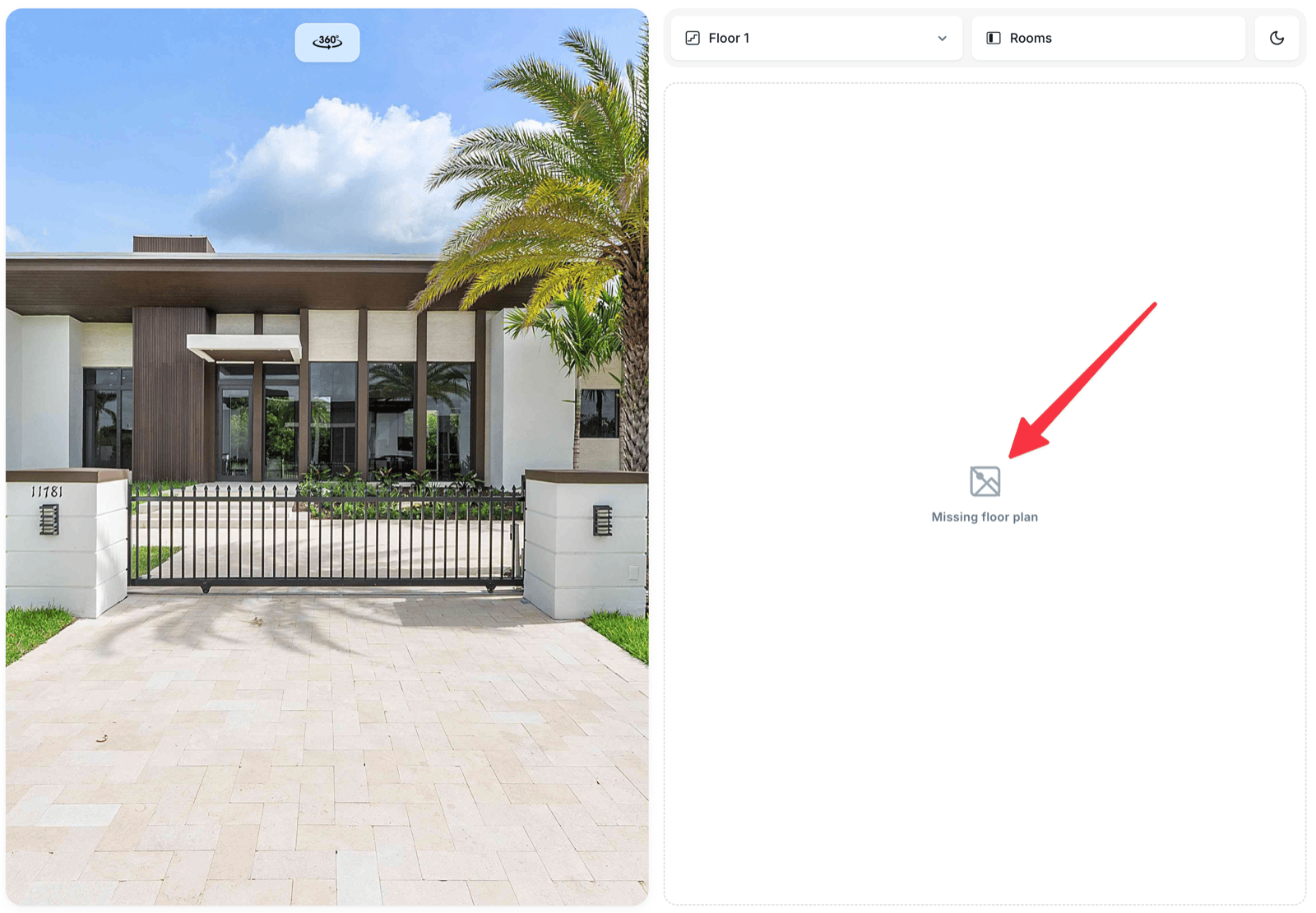
A missing floor plan, shown as a labelled placeholder rather than a broken image
Seeing a placeholder on a published Visit is your cue that something did not upload. Go back to the matching Content tab and re-upload.