

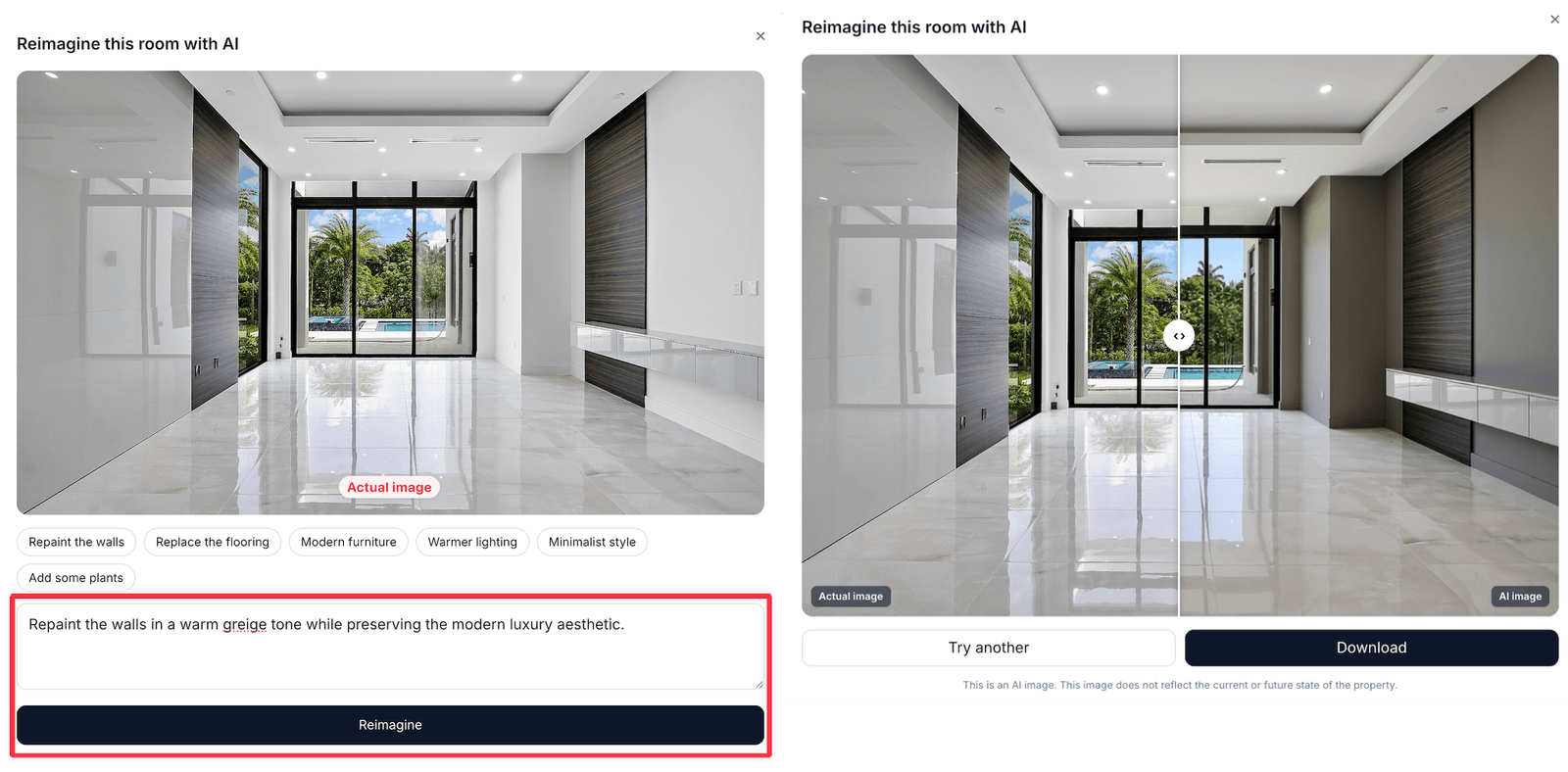
The Reimagine dialog — a prompt field and one-tap example styles
How a buyer uses it
1
Open a room
Any room with a photo shows the Reimagine button under the image.
2
Describe the style
Type a prompt, or tap one of the example badges — Scandinavian, Minimalist, Warm and cosy, and so on — to fill it in.
3
Generate
The result appears in place after a few seconds.
4
Compare and retry
Switch back to the original at any time, or run another prompt with a different style.
A prompt in, a restyled room back — the same walls and windows
Why it sells
Empty or dated rooms are the hardest to sell because buyers cannot picture themselves in them. Reimagine turns “needs work” into “could look like this” without a staging budget — and the reimagines a property attracts are a strong signal of interest, which is why they are counted in Analytics.Getting good results
The quality of the output follows the quality of the input photo:- Well-lit, straight-on shots reimagine best
- Wide shots showing the whole room give the model more to work with
- Very dark or heavily cluttered photos produce muddier results
Notes
- Reimagine needs the room to have a room photo. Rooms without one do not show the button.
- The feature is on by default for every Visit; nothing to configure.
- Results are not saved to your property and cannot be downloaded into the editor.